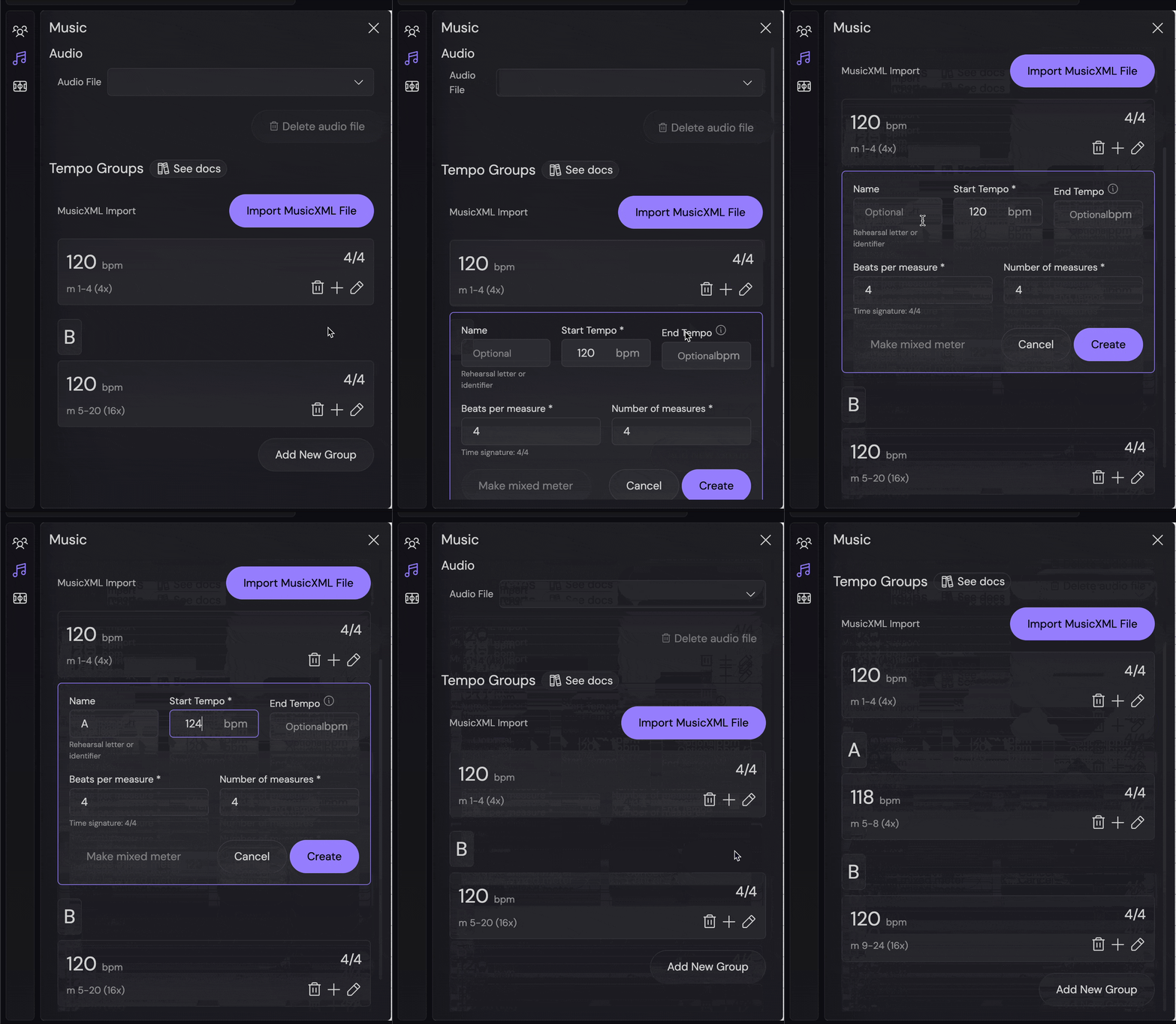
Setting Tempo
Defining tempos in OpenMarch is how we keep the drill aligned with the music.
Tempo and timing data sits on top of the music file you import. Once there’s timing data in a show, pages can be lined up the music effortlessly, without having to worry about timestamps or manual alignment. We give you a handful of ways to customize and tweak the timing data to your liking, so you can start designing your drill as fast as possible.
There are two ways to define tempos -
Tempo groups
What is a tempo group?
Tempo groups are collections of measures that have the same time signature and tempo
Groups that have the same time signature and tempo are combined into a single group, unless the second group has a name. (I.e. A or Closer)
Creating tempo
Manually creating a new tempo group
Open the Music tab and you will see the following form -
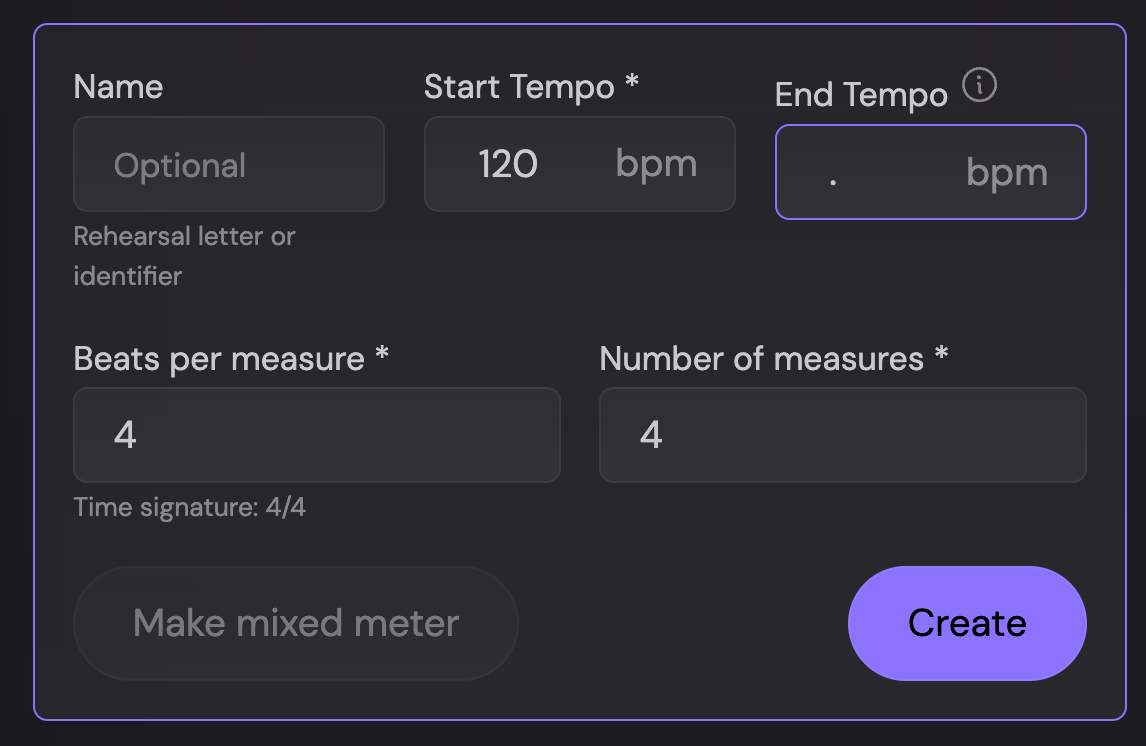
When creating a tempo group, you have the following options -
- Name: An optional identifier used to differentiate the tempo in the timeline.
- This is useful for rehearsal marks like
AorCloser
- This is useful for rehearsal marks like
- Start tempo: Beats per minute (BPM) that the tempo group starts at
- End tempo: Beats per minute (BPM) that the tempo group ends at
- This is optional and will default to the start tempo if not provided
- Beats per measure: The number of beats in each measure. Or, the time signature’s numerator
- I.e. a time signature of
4/4has 4 beats per measure - See Mixed meters for information on how to handle mixed meters
- I.e. a time signature of
- Number of measures: The amount of times this tempo group should repeat
- Note, if an
End tempois provided, this will stretch the tempo change over the number of measures
- Note, if an
Mixed meters
- Set the
Beats per measureto a number greater than or equal to 5 - Click
Make mixed meter - Choose a
Beat Pattern
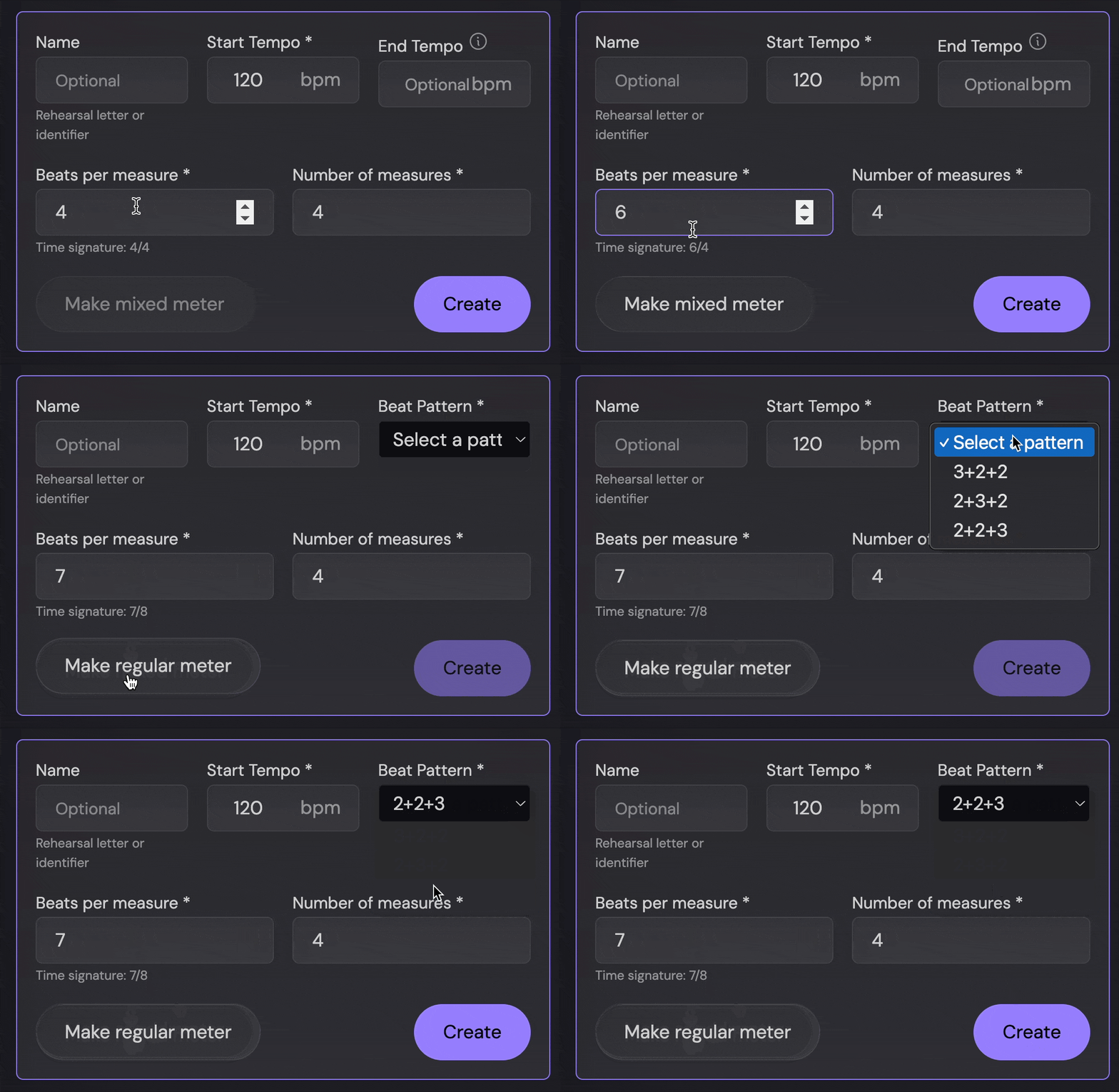
A few notes on mixed meters:
- The tempo defined in the
Start temporepresents the quarter note’s BPM- I.e. a tempo of
144means the quarter note is 120 BPM and the dotted quarter note is 180 BPM
- I.e. a tempo of
- Tempo changes with mixed meters are not automatically calculated
- This is why you cannot set the
End tempofor a mixed meter tempo group - You can manually define the tempo change by editing the tempo group and adjusting each beat’s tempo
- This is why you cannot set the
- The only supported mixed meters are meters that mix any pattern of
2and3eighth note groupings- You may go all the way up to
30/8, if you every want a mixed meter of3+2+3+3+3+3+3+2+3+2+3or any other permutation
- You may go all the way up to
Importing a MusicXML file
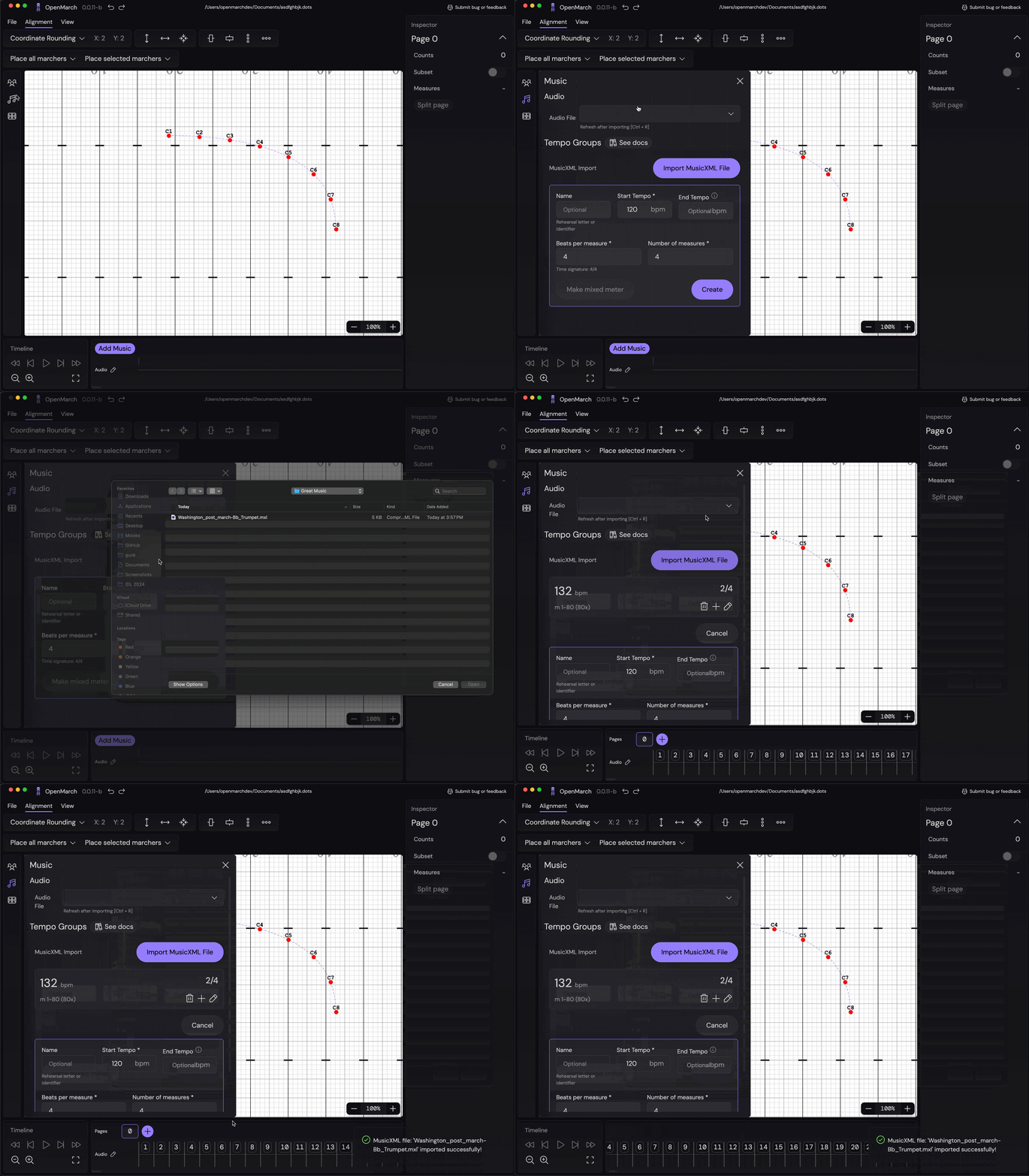
To import a MusicXML file, follow these steps:
- Open the
Musictab - Select
Import MusicXML - From the file popup, select the
MusicXMLfile you want to import - You should see the tempo groups populate in the
Tempotab and beats in the timeline!
Tapping tempo
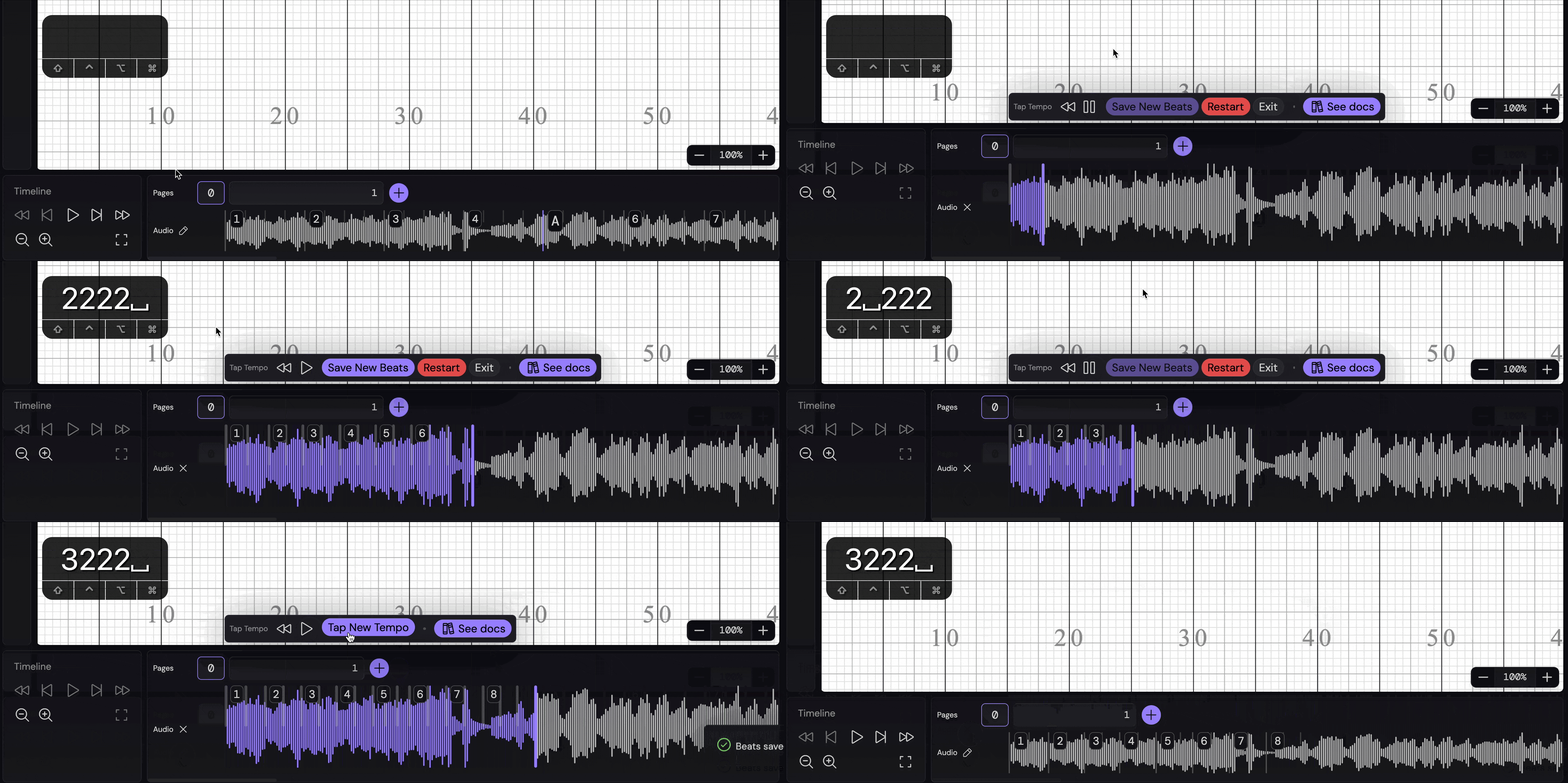
Tempo tapping is not very polished and is currently all-or-nothing. You must tap all in one shot and will need to start over if you make a mistake or need to edit.
- Press the
Editbutton in the timeline - Click
Tap new tempoto delete all existing beats and start fresh - Start at the beginning of the audio by pressing
Rewind - Play the audio by pressing
Playor Space - Tap the tempo
- Use the number keys
[1-9]to tap the tempo - Press the number that corresponds to the beats in the measure, or the time signature’s numerator
- For example in
4/4time, press the 4 key - Press the key at the downbeat of each measure
- Use the number keys
- Pause the audio by pressing
Pauseor Space - You have three options:
- Save the new beats by pressing
Save - Retry the tap tempo process by pressing
Restart - Cancel and go back to your old beats by pressing
Exit
- Save the new beats by pressing
Editing tempo
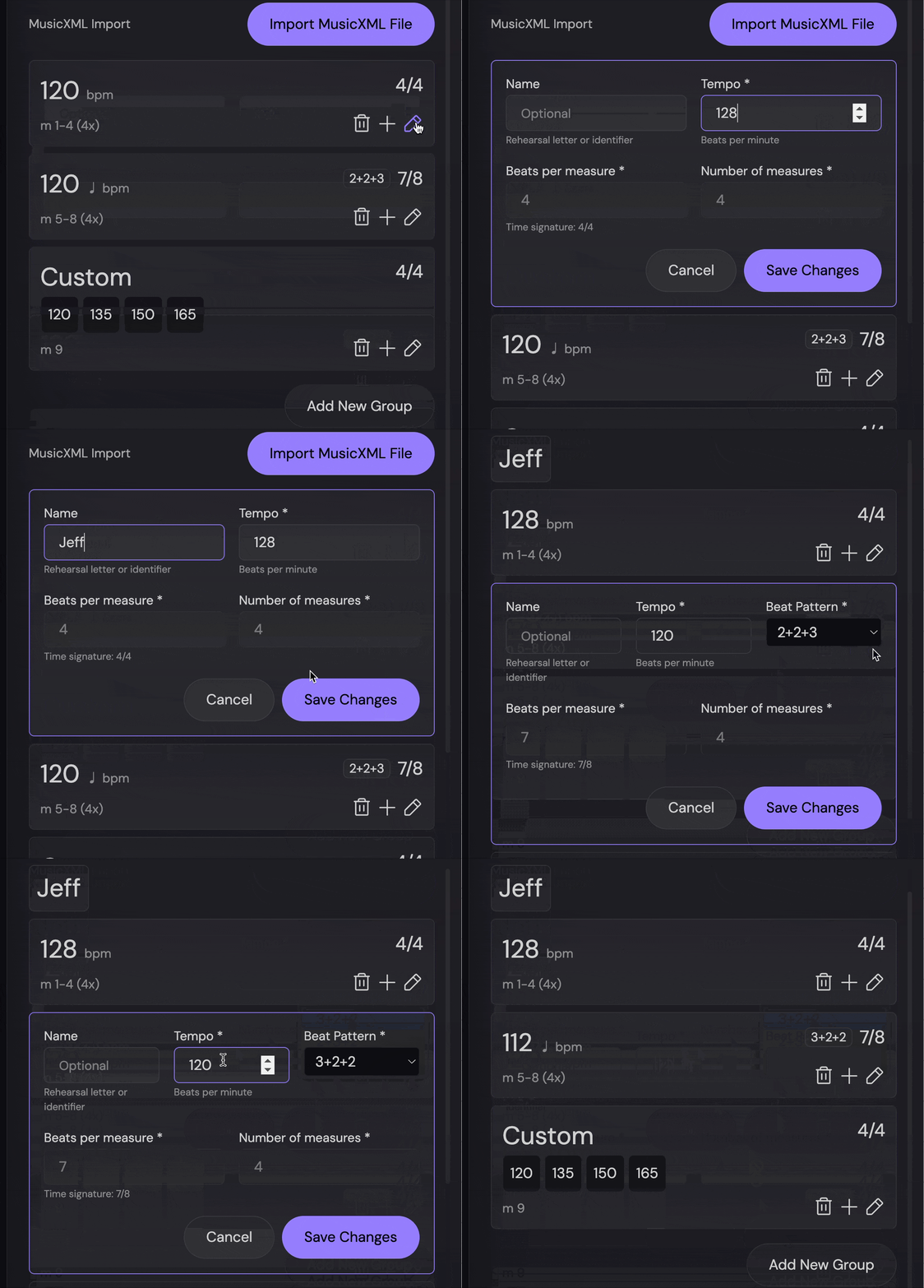
Simple Groups
Simple groups are tempo groups that maintain a consistent tempo. These can be mixed or simple meters.
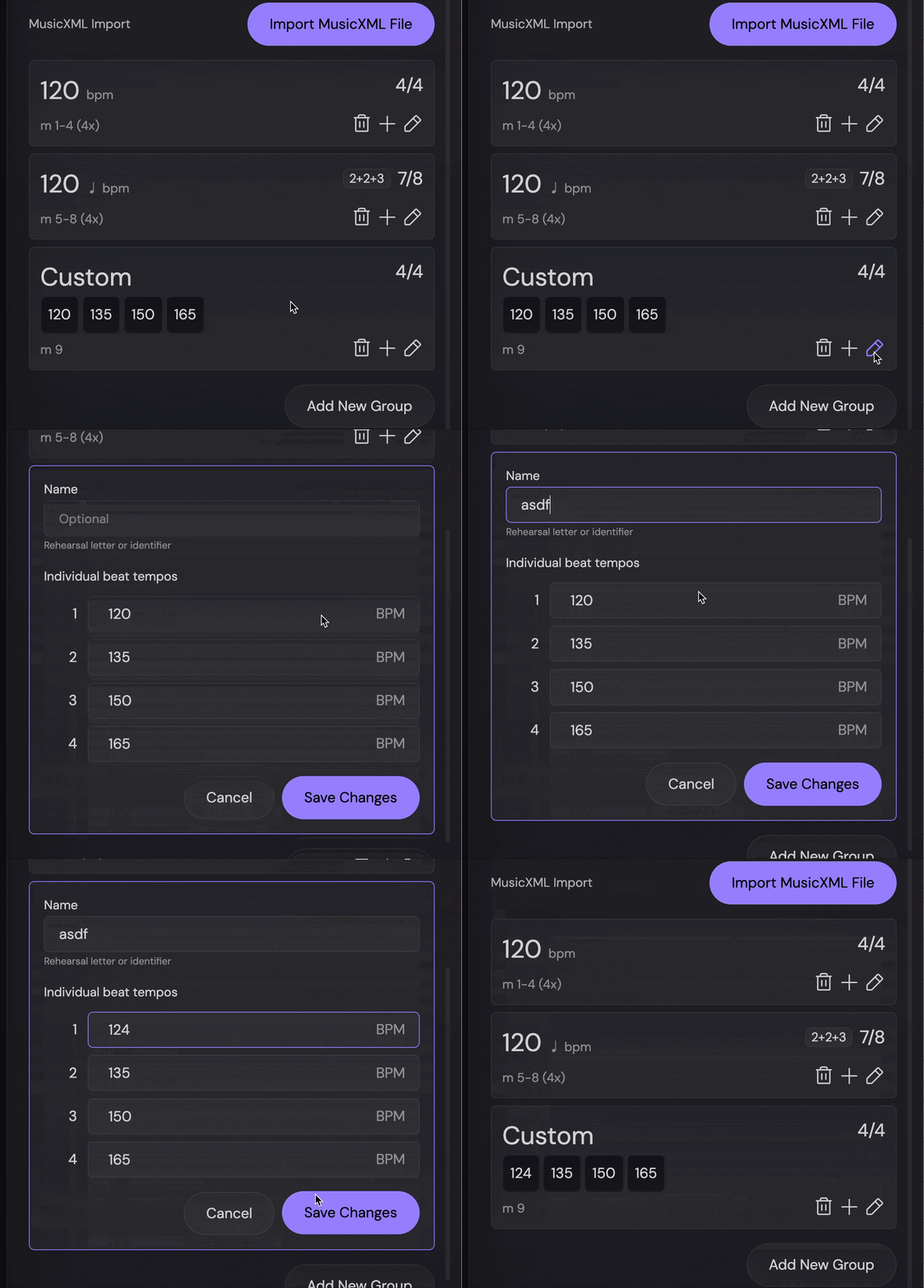
Custom groups
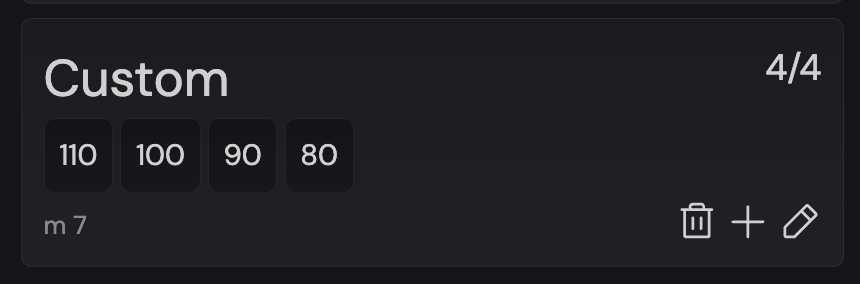
Custom groups are groups where each beat’s tempo is defined individually. These groups are always a single measure.
Deleting a tempo group
To delete a tempo group, simply click the trash icon in the tempo group’s menu.
When you see the confirmation dialog, click Delete to delete the tempo group.
Fine-grained tempo editing on the timeline
Often, the tempo group editor may not give you enough options to get the tempo you want, especially after you’ve already put a bunch of tempo groups in.
To get your timing exactly right, you can click on the beats in the timeline to adjust the duration of each one, or add/delete individual beats.
For measures, you can add or delete measures or change the rehearsal mark.
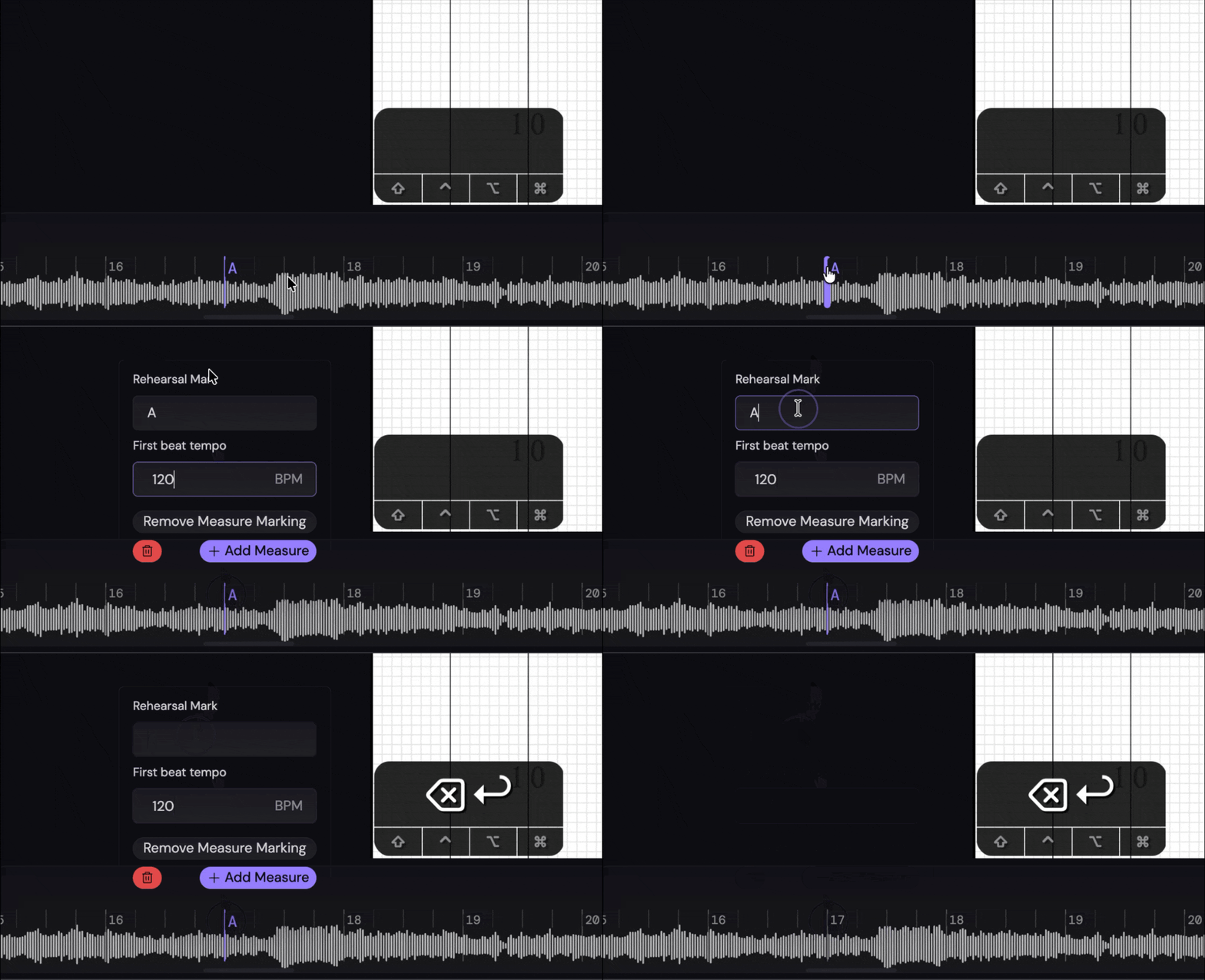
Any measure can have a rehearsal mark for easy identification. (E.g. A, Closer, etc.)
From a development standpoint, this is difficult because of the complexity with how pages attach to beats. This is likely a solvable issue, but there are many edge cases to consider.
This fine-grained editor should be enough for most use cases. But, as always, let us know if you have any suggestions!
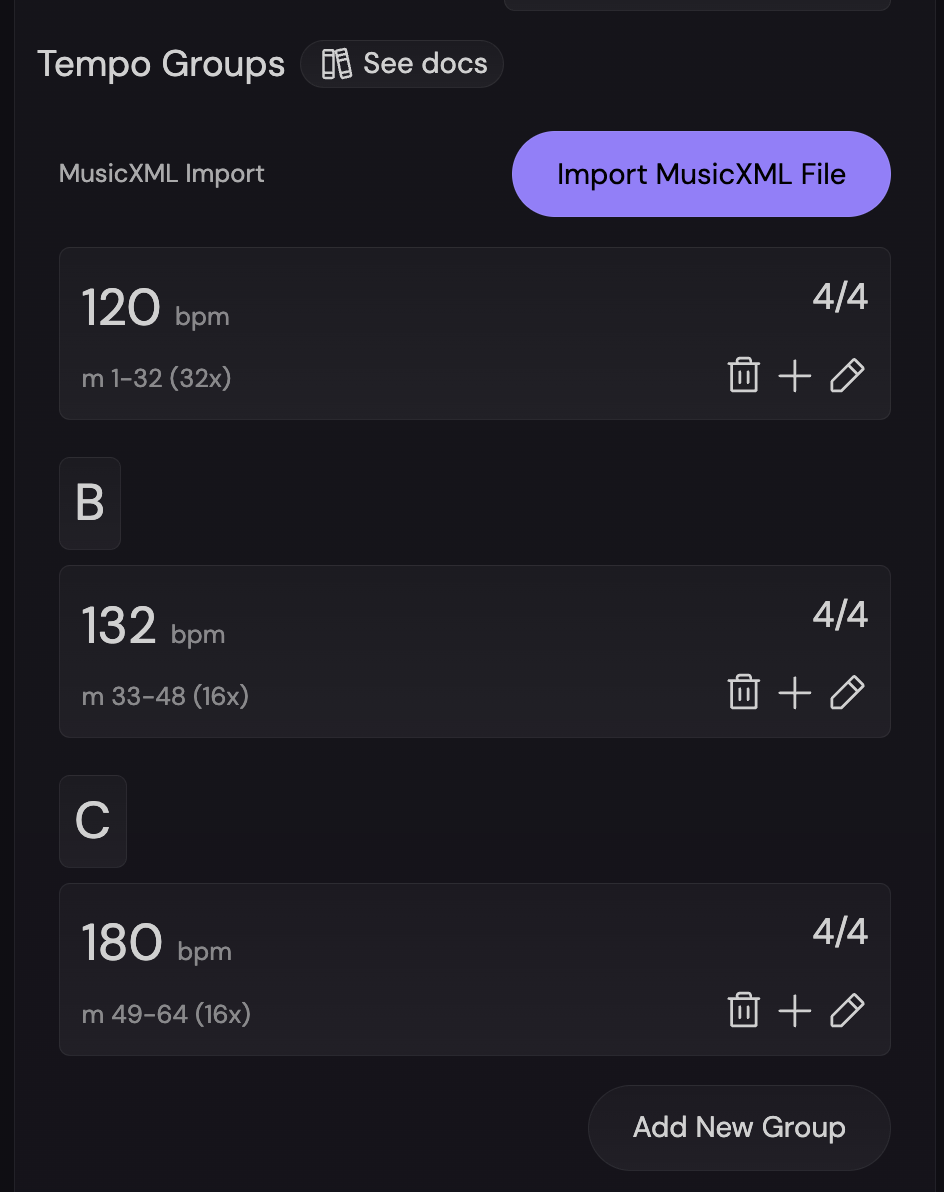
For the following examples, we’ll assume we made a handful of tempo groups and are now trying to fine-tune the timing:
- Start - 32 Measure of 4/4 at 120 BPM
- Letter B - 16 Measure of 4/4 at 132 BPM -
- Letter C - 16 Measure of 4/4 at 180 BPM -
Adding or removing a rehearsal mark
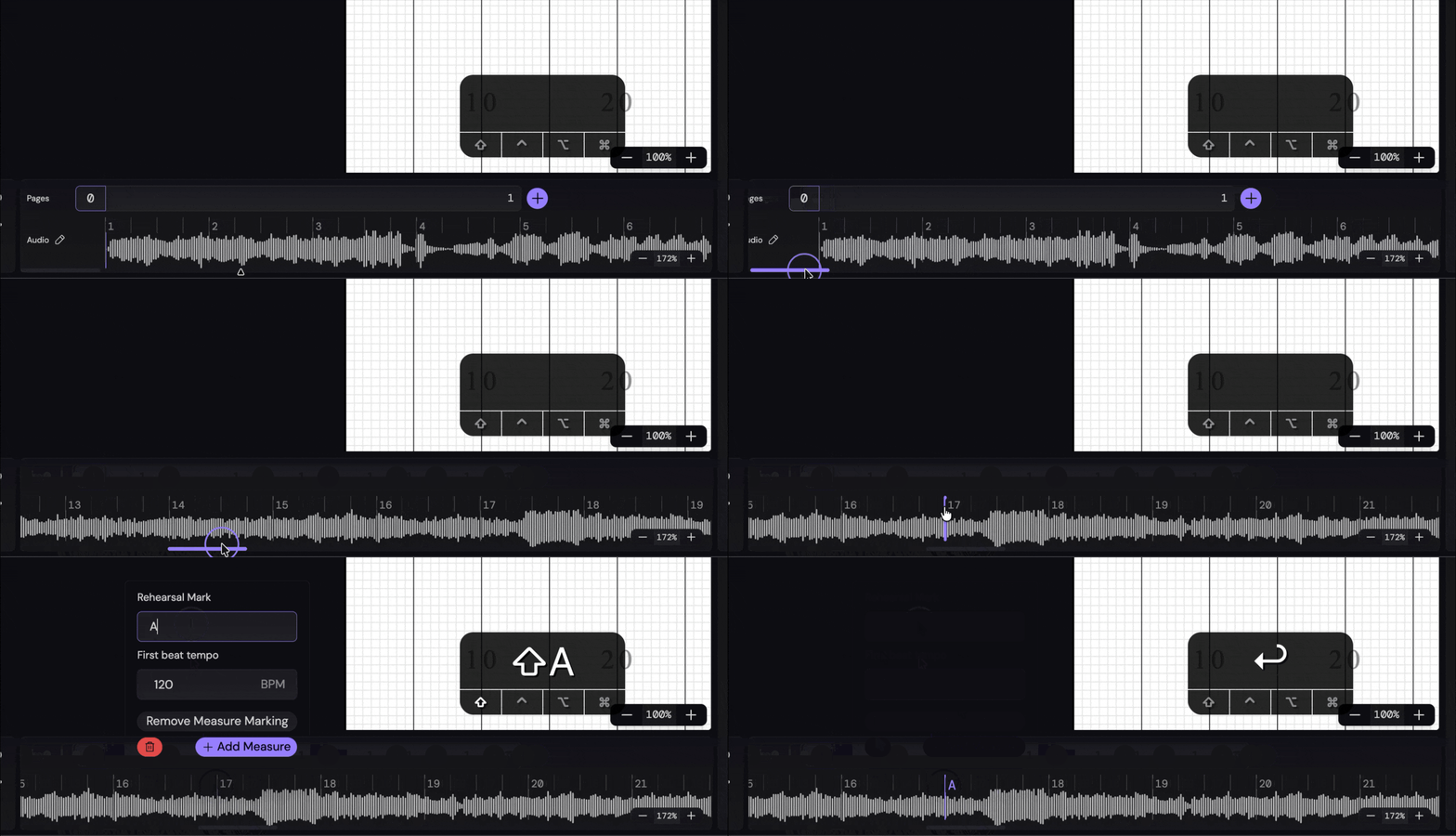
Notice how we forgot to add Letter A to the tempo groups, and now we can’t easily edit it. Assuming Letter A is at measure 17, we can right click on the measure in the timeline and change the rehearsal mark to A.
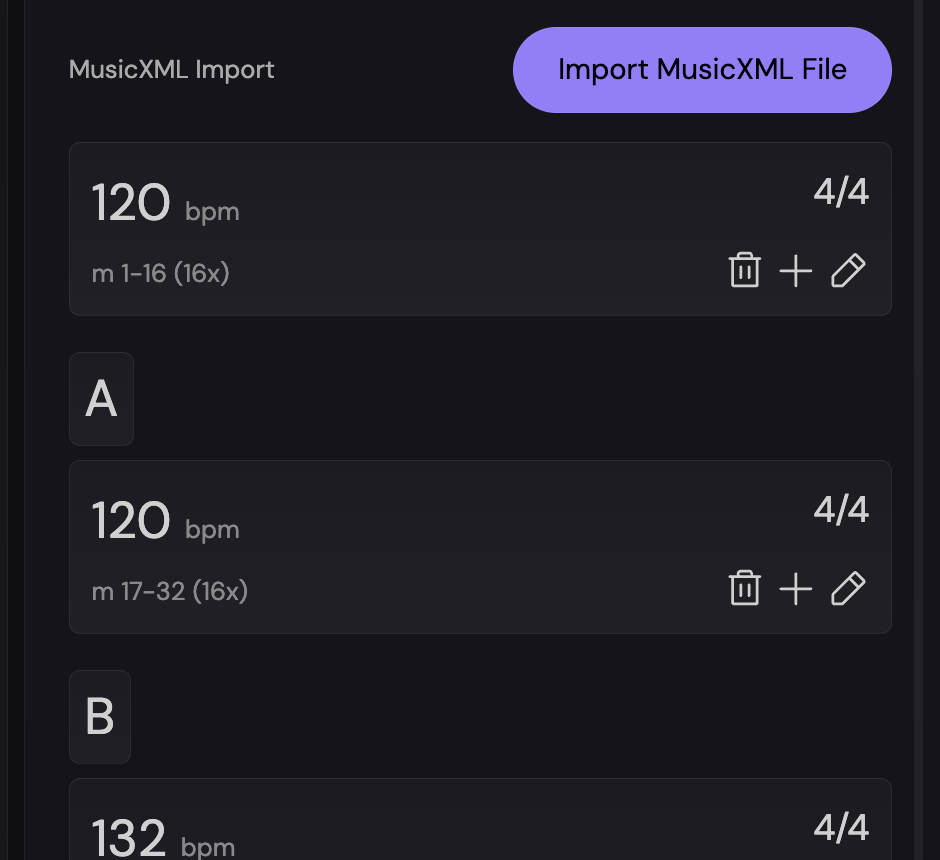
Now, if we look in the tempo group editor, we can see that Letter A has been added to the tempo groups:
The same process can be used to add or remove a rehearsal mark for any measure:
Adding or deleting measures
To add or delete a measure, click on the measure in the timeline and select “Add measure” or “Delete measure”. This will delete the measure and all of the beats that belong to it.
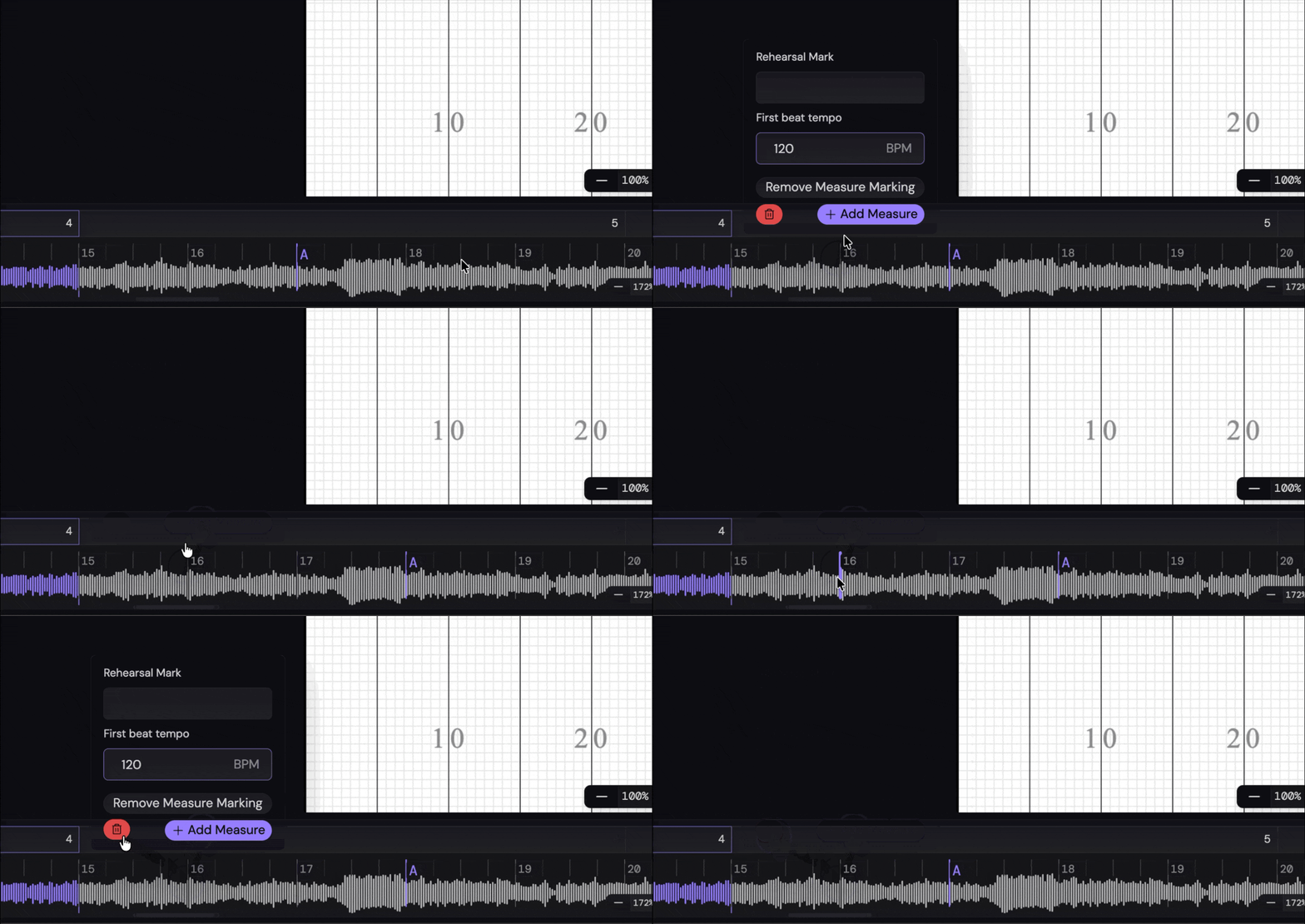
Notice how the measure numbers after Letter A have been incremented by 1, signifying that a new measure has been added.
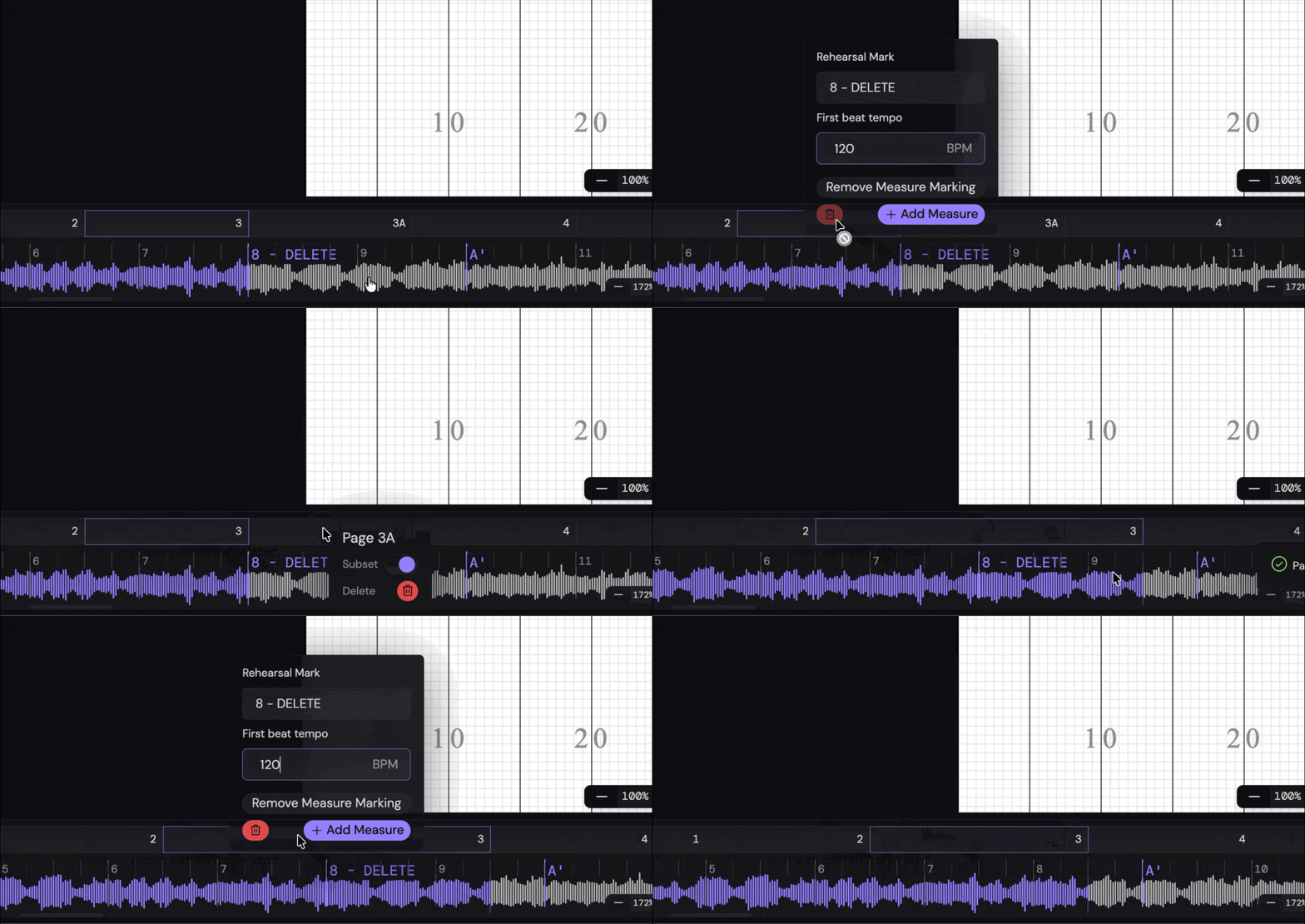
Deleting a measure with a page that starts on it
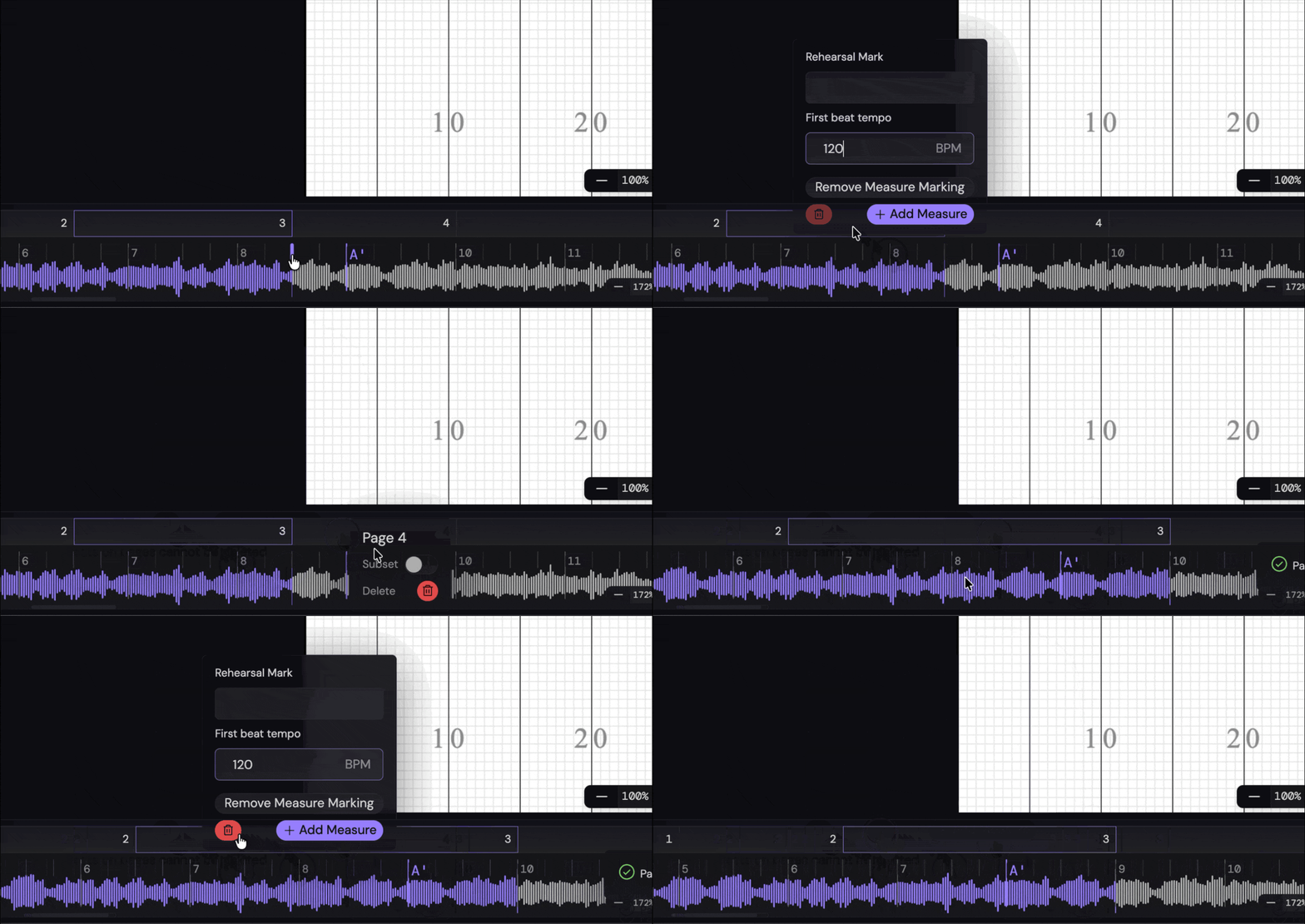
Note - you cannot delete measures if a page starts on that measure or any of the beats in the measure. To delete these, you must first delete the page that starts on that measure or its beats.
The same is true for pages that start in the middle of a measure:
Adding or deleting an individual beat
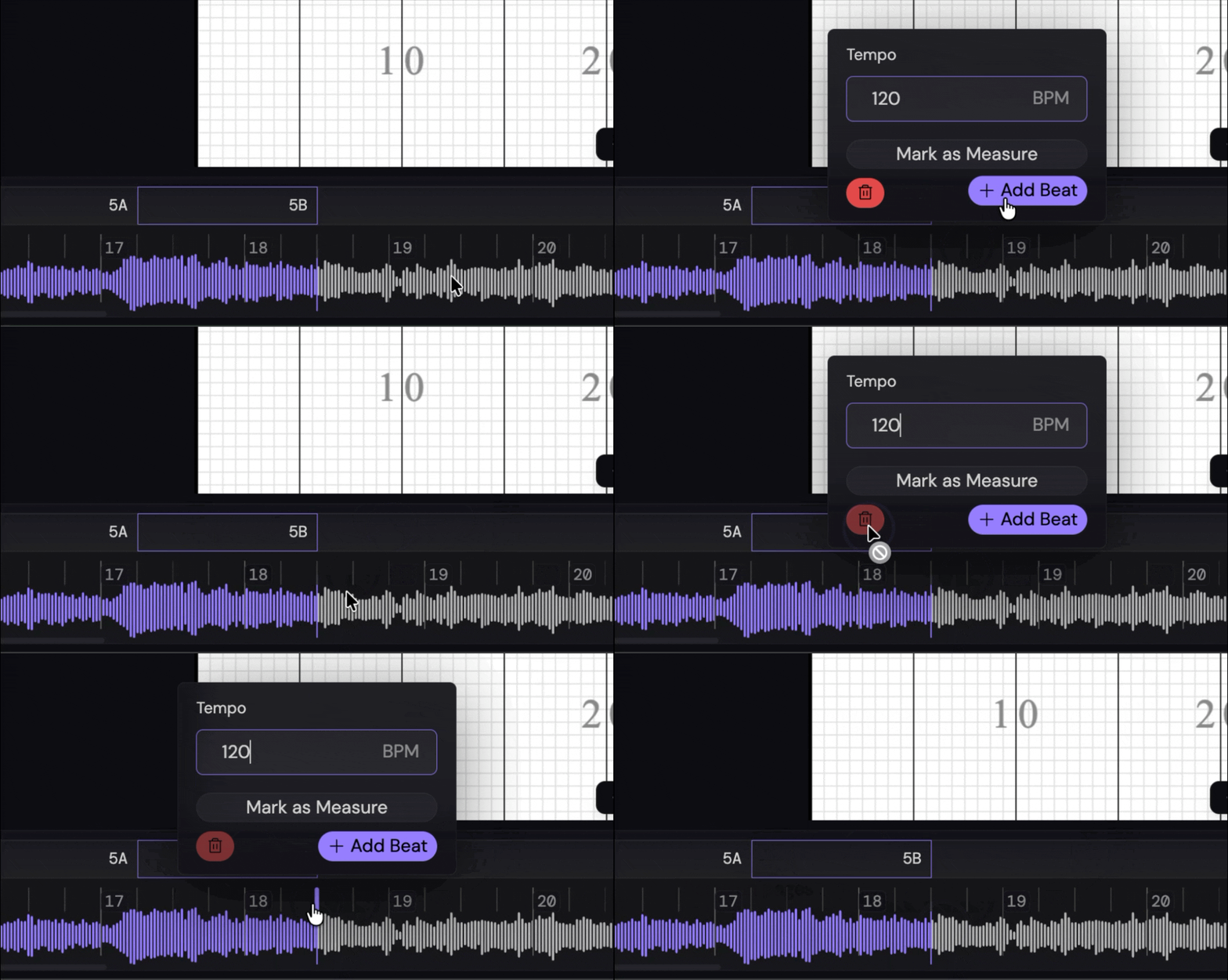
If you need to just add a single beat, rather than an entire measure, you can do so by clicking on any beat within a measure that isn’t the first beat and pressing the Add Beat button.
The beat that is added will be the same tempo as the beat you clicked on.
To remove a single beat, simply click on a beat that isn’t the first beat in a measure and press the trash icon. The restriction of a page starting on a beat is still in place.
Adjusting the tempo of a beat
To adjust the duration or tempo of a beat, click on the beat in the timeline and adjust the tempo. Press Enter to save the changes or Esc to cancel.
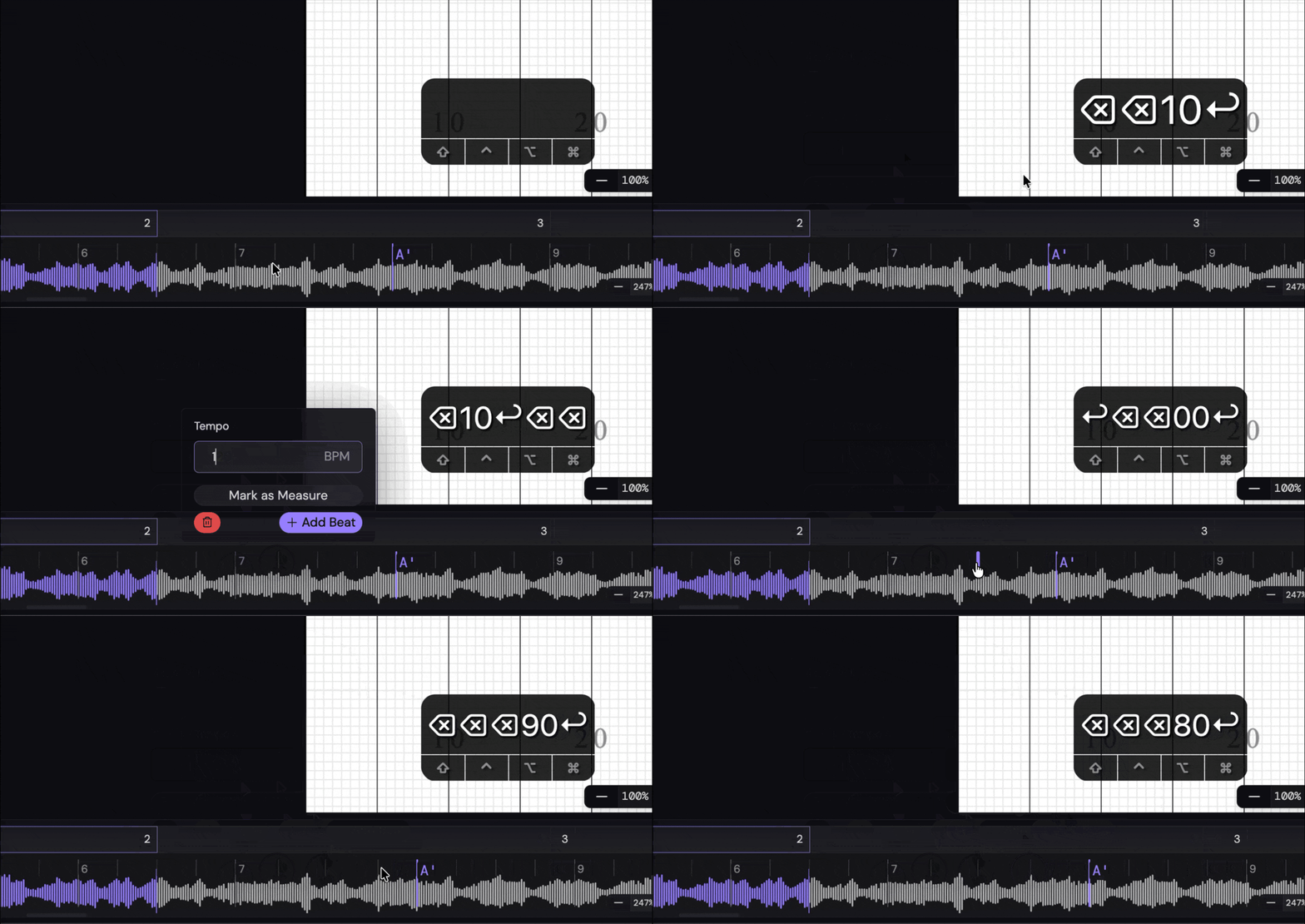
Notice in the Tempo Group editor, this measure has turned into a “Custom” group.
This happens when not all beats in the measure have the same tempo.
Converting a beat to a measure and vice versa
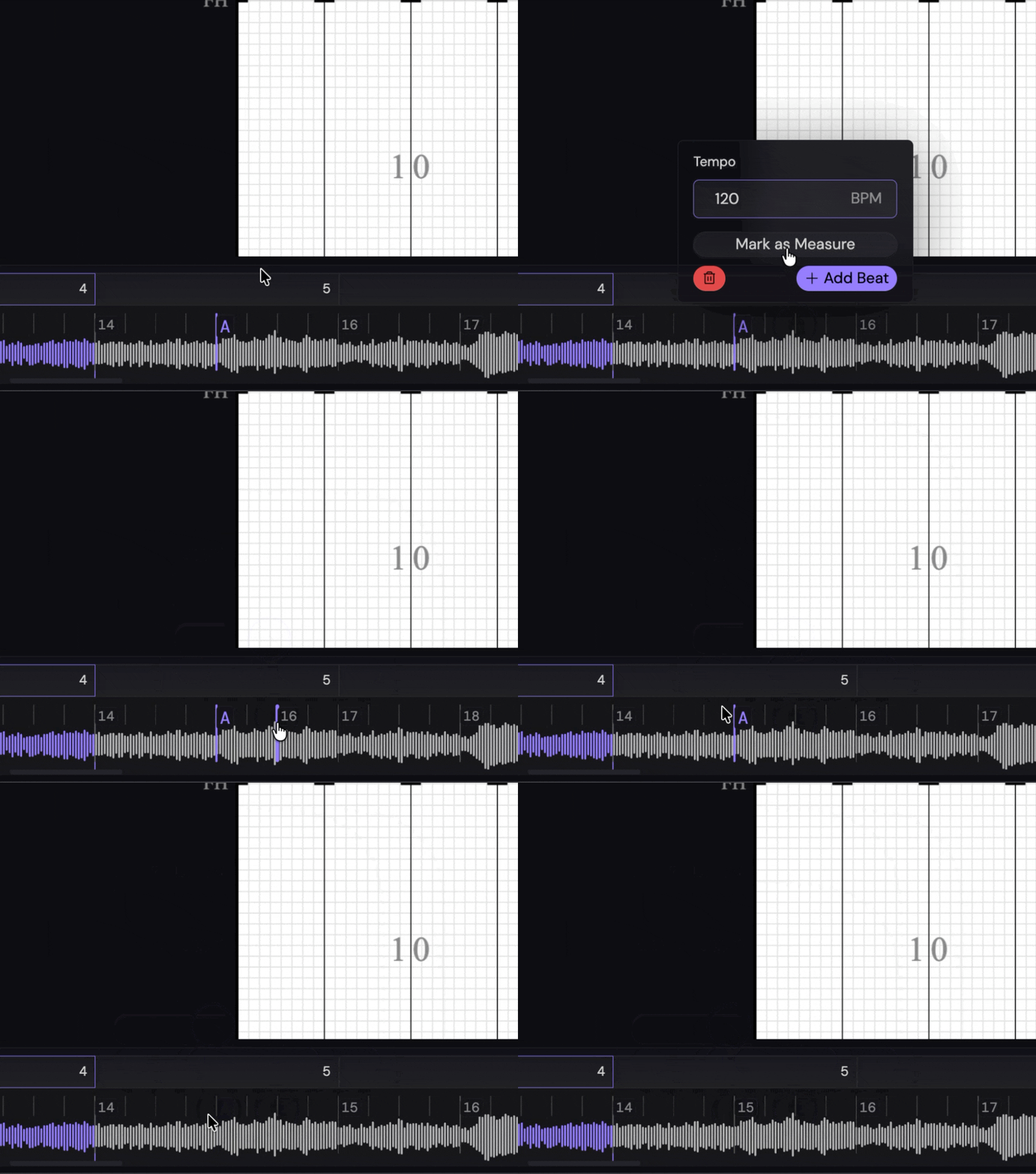
Measures are really just flags that say “this beat is the start of a measure”. This means, you can define a new measure by adding a measure marking to a beat.
In a similar vein, you can convert a measure to a beat by removing the measure marking from the beat. Note - turning a measure with a rehearsal mark into a beat will remove the rehearsal mark.
Toggling the Metronome
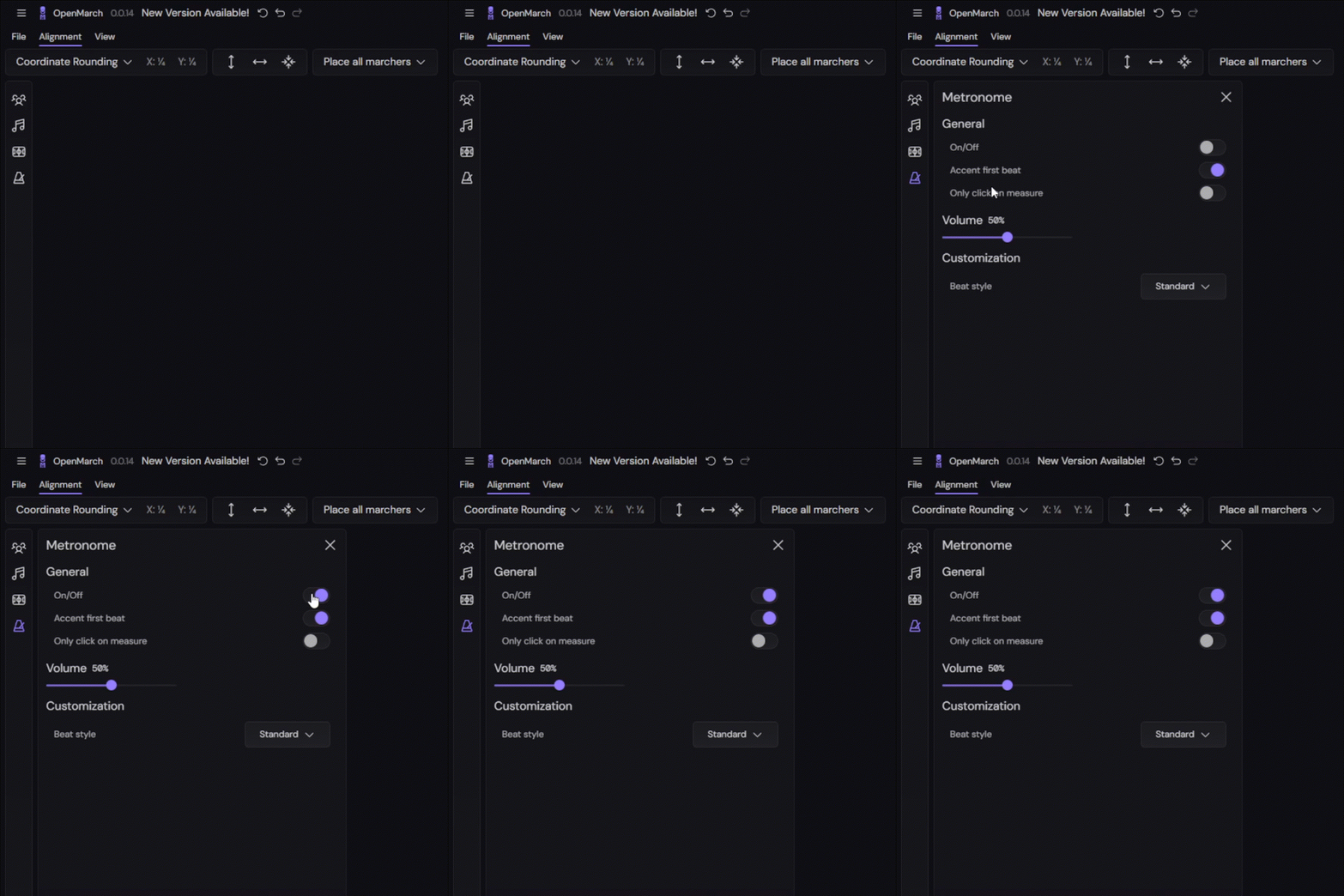
To toggle the metronome, click the metronome icon in the sidebar, find General, and toggle “On/Off”. Alternatively, you can toggle the metronome by clicking the metronome icon in the Timeline palette in the bottom-left corner.
How does timing data work under the hood?
When it comes to tempo and timing OpenMarch has one goal - make it easy for you, the designer, to line up your pages with the music.
To achieve this mission while keeping things simple, OpenMarch only stores timing data in the form of Beats.
Each Beat has a duration in seconds.
Adding up the durations of the Beats in the show is how we get the timestamps.
You might think “why not just store tempos with flags at certain tempo changes?” This was the original implementation we had, but we found that it had too many edge cases and was too complex to maintain.
This Beat system is much simpler from a development perspective and can easily be abstracted into digestible tempo representations for the designer.
I.e. during a gradual tempo change, designers have absolute control over how each beat changes over time
FAQs
What about time signatures like 2/2, 3/2, etc?
OpenMarch doesn’t actually care what the time signature’s denominator is.
It just cares about the Beats per measure (or time signature’s numerator).
With this, you can define a 3/2 in the same way you would define a 3/4 time signature.
All you need to do in this case is set the Start tempo to whatever you the half note’s BPM is
I made a mistake! How do I change the number of measures in a tempo group?
Currently, you can’t :(
What you can do in the meantime is delete the old tempo group and create a new one with the correct number of measures.
We are working on a better way! (Issue #512)
Can I add tempo groups in between existing tempo groups?
Yes! Just press the + button in the tempo group’s menu.