

Importing Audio
Add an audio file to your show
Section titled “Add an audio file to your show”OpenMarch supports importing .mp3, .wav, or .ogg audio files.
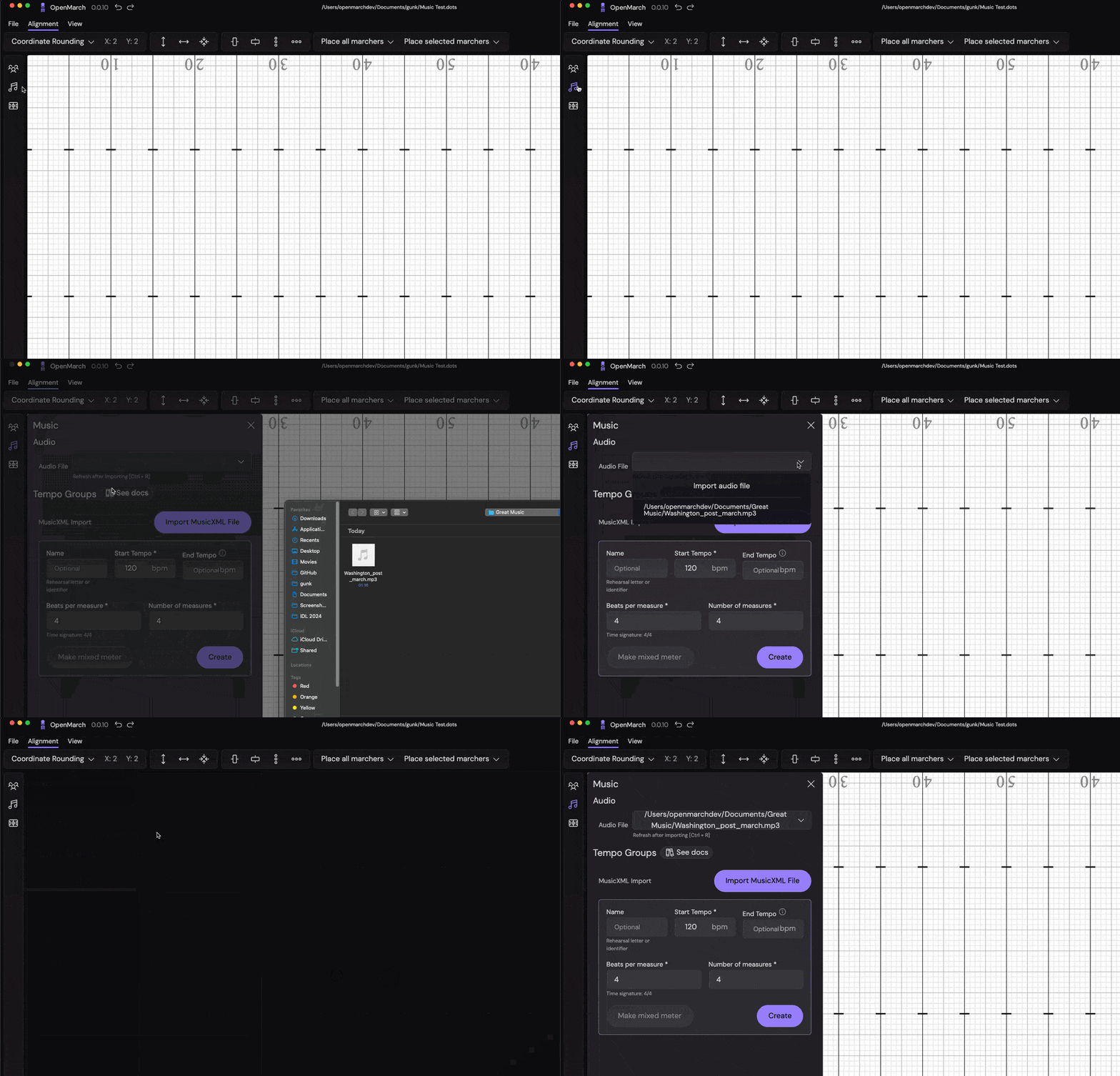
To add an audio file to your show, follow these steps -
- Open the
Musictab - Click the empty dropdown
- Select
Import Audio - From the file popup, select the audio file you want to import
- The page will automatically refresh and you should see the audio file in the
Musictab and a waveform in the timeline!
Apply offsets to your audio file
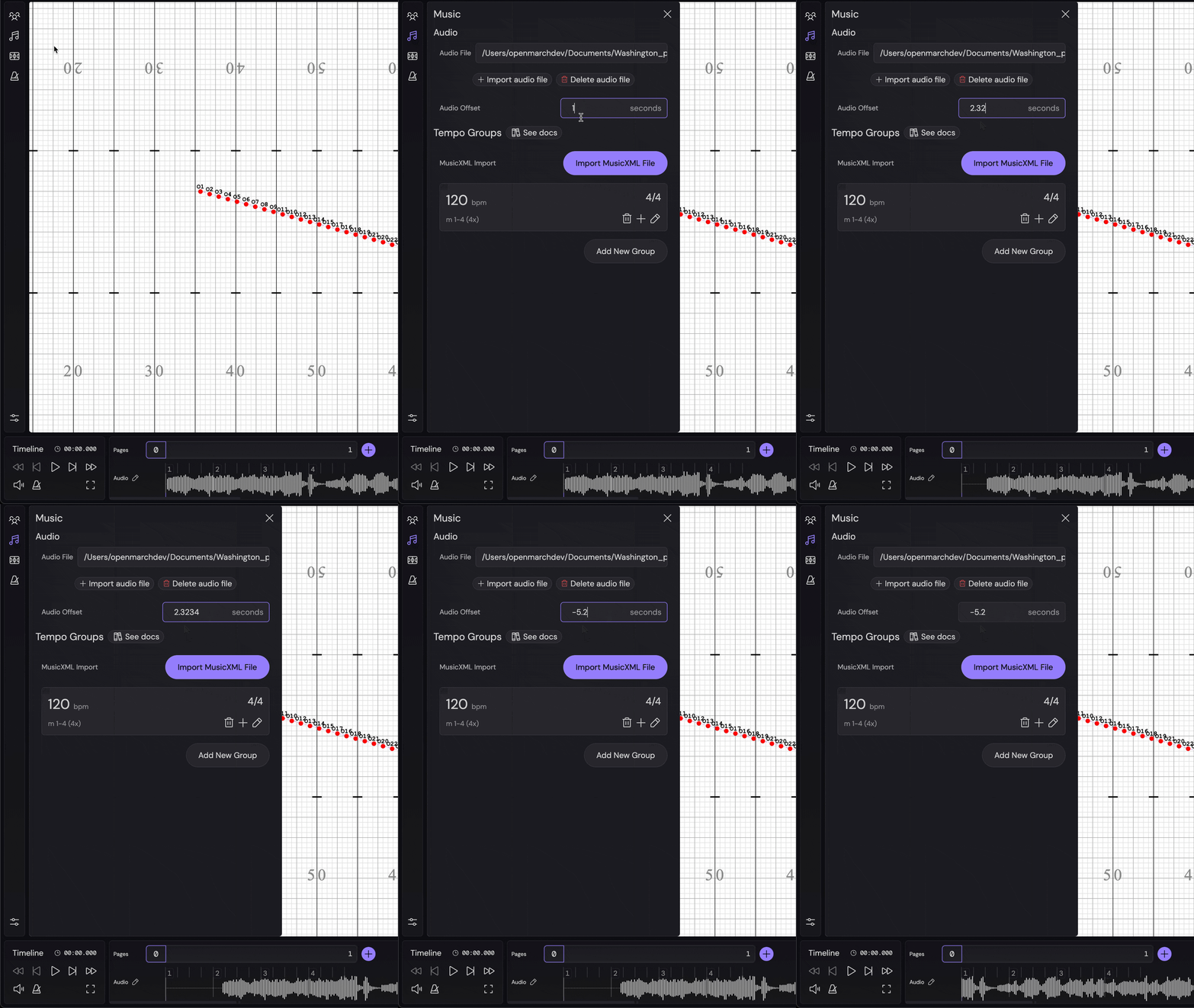
Section titled “Apply offsets to your audio file”To have precise tempo syncing, you can apply either a positive or negative offset to your audio file. This will pad or trim the audio file respectively.
- Open the
Musictab - Enter your offset (either positive or negative) in the
Audio Offsetinput - Press
Enteror click outside the input to apply the offset - The audio file will be padded or trimmed accordingly
Next step is to set your tempo.