Managing Your OTM Ensemble
To manage your ensemble, you can use the Ensemble Management Dashboard.
Performer and Staff Registration
Section titled “Performer and Staff Registration”How do performers, staff, or anyone using the app get access to my ensemble?
Section titled “How do performers, staff, or anyone using the app get access to my ensemble?”Anyone who uses the app will register using an ensemble code and password. This can be found in the Ensemble Management Dashboard.
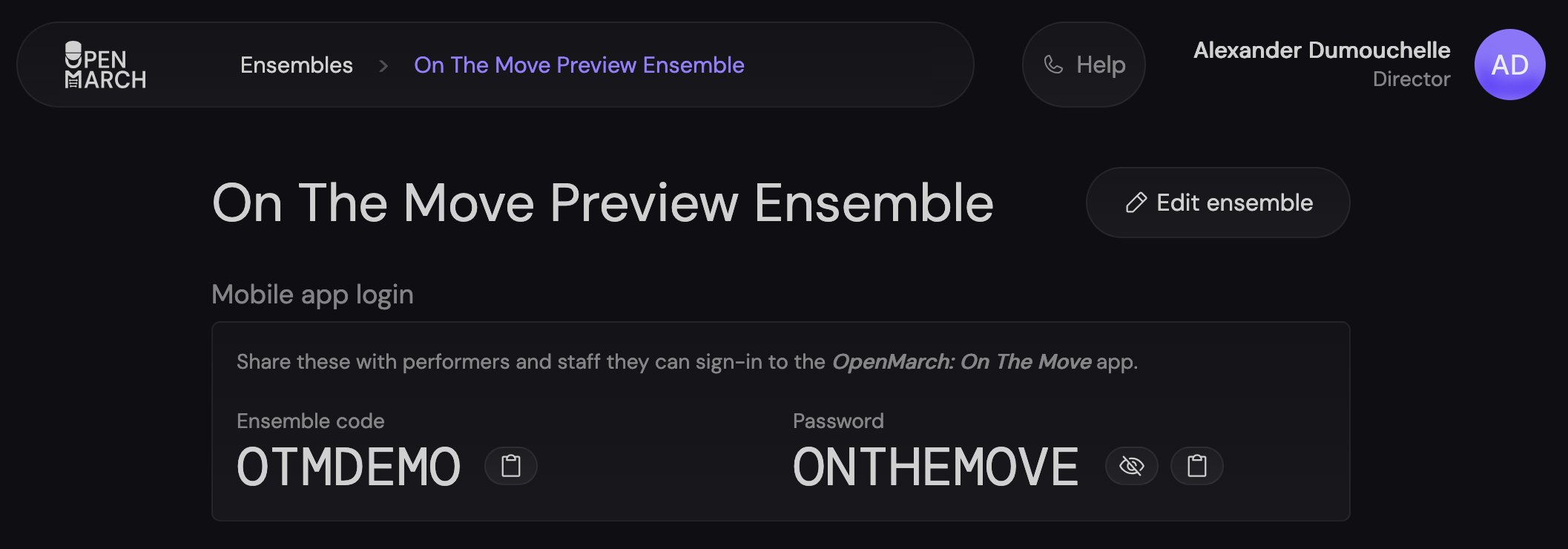
The ensemble code and password are randomly generated, but you can edit them to whatever you like. Ensemble codes follow the following rules:
- All letters are uppercase
- No spaces
- Max 24 characters long
- All ensemble codes are unique
E.g. Lincoln High School - 2026 might use the code LINCOLN-HS-2026.
Do performers need to make an account?
Section titled “Do performers need to make an account?”No. The only thing anyone accessing the mobile app needs is an ensemble code and password. We do not collect any personal information from app users.
How can I see who is registered to my ensemble?
Section titled “How can I see who is registered to my ensemble?”Since we do not collect any personal information from app users, you cannot see exact names of who is registered to your ensemble.
However, we do collect the performer label (or drill number) that each performer has assigned to themselves. From this page, you can see which performers have registered to your ensemble.
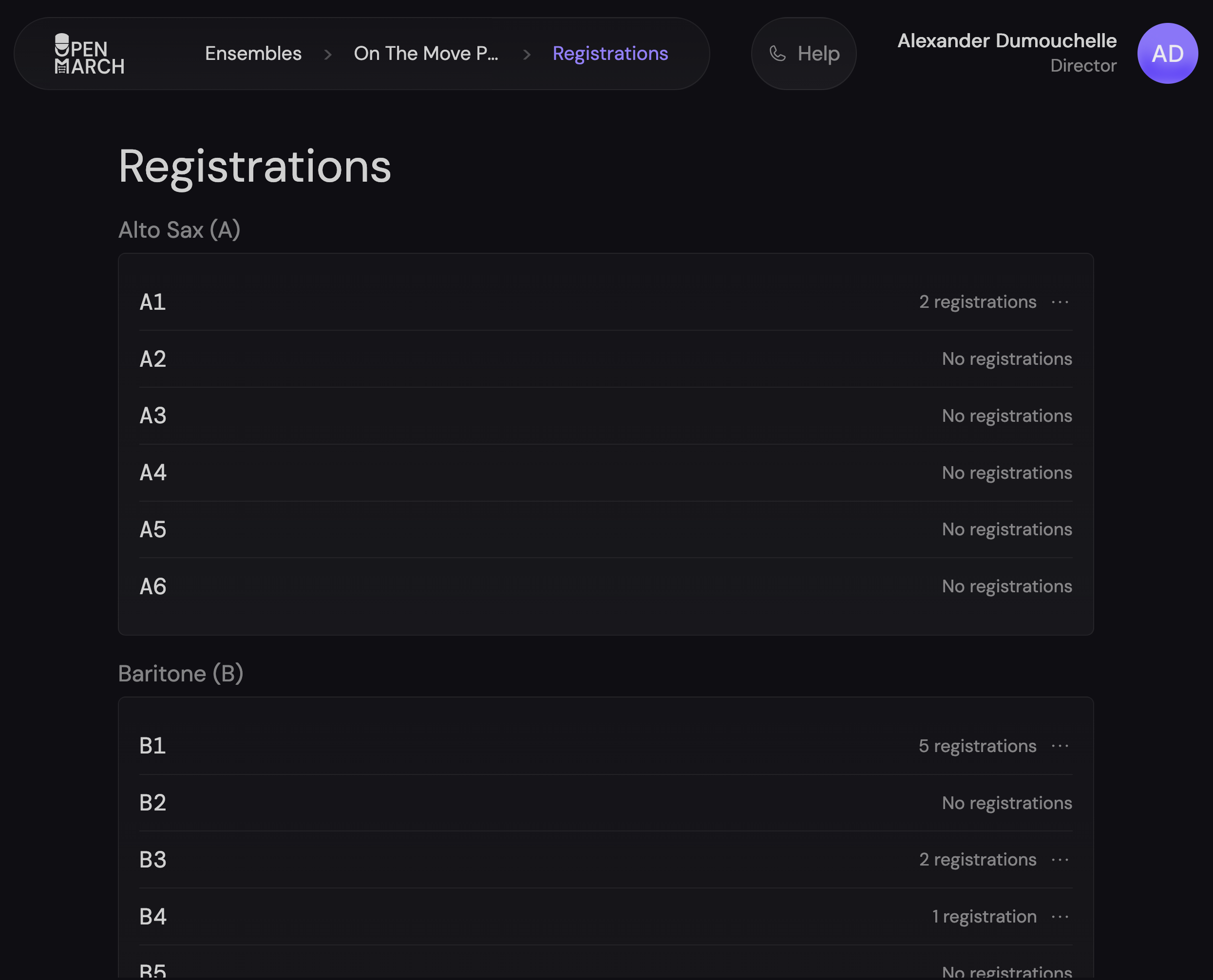
Users that did not pick a performer label will be listed as “Unassigned”.

How do I navigate to the performer registration page?
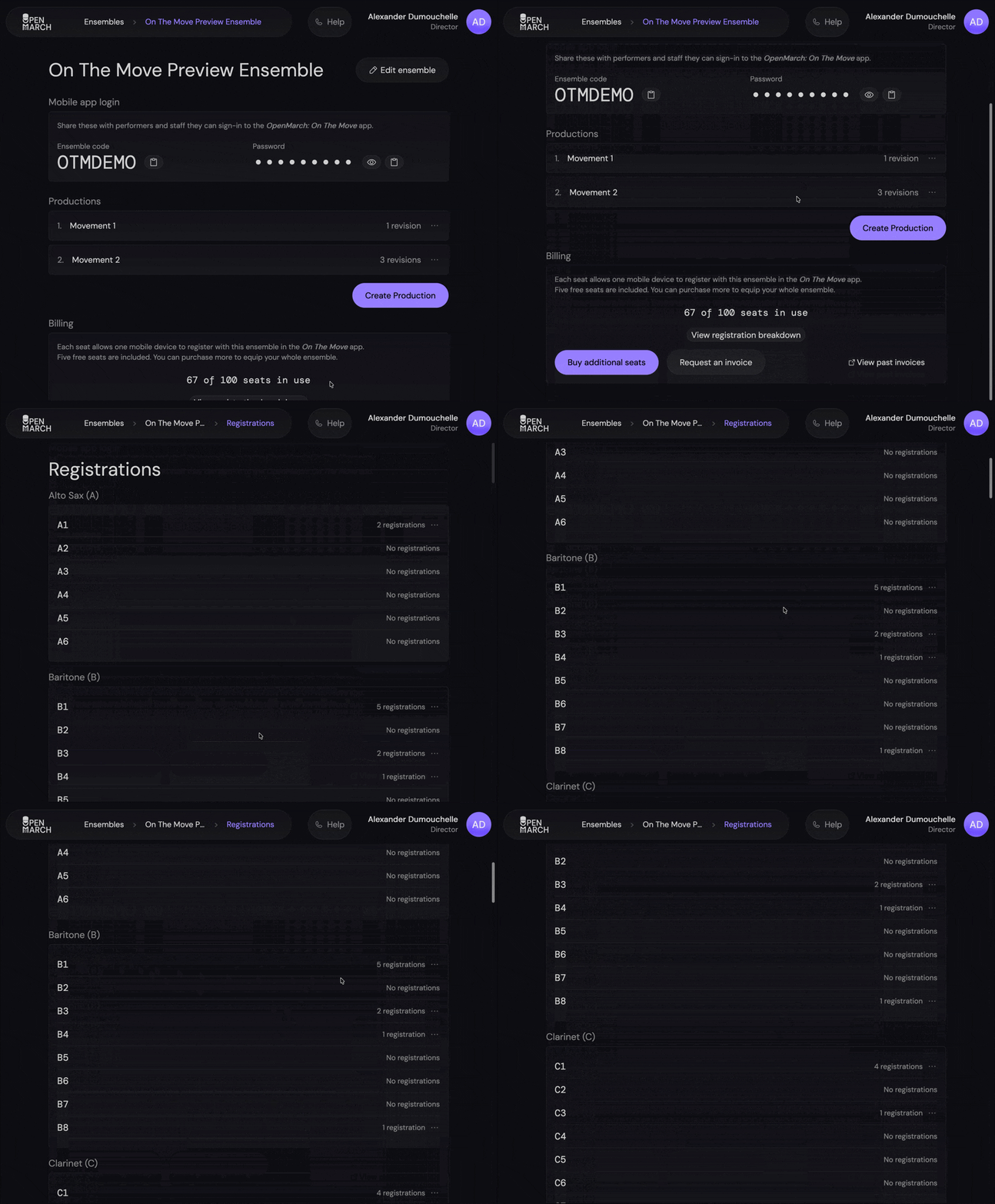
Section titled “How do I navigate to the performer registration page?”- Navigate to the Ensemble Management Dashboard.
- Click on the ensemble you want to view registrations for.
- Click on “View registration breakdown” under the “Billing” section.
Can I remove a device from my ensemble?
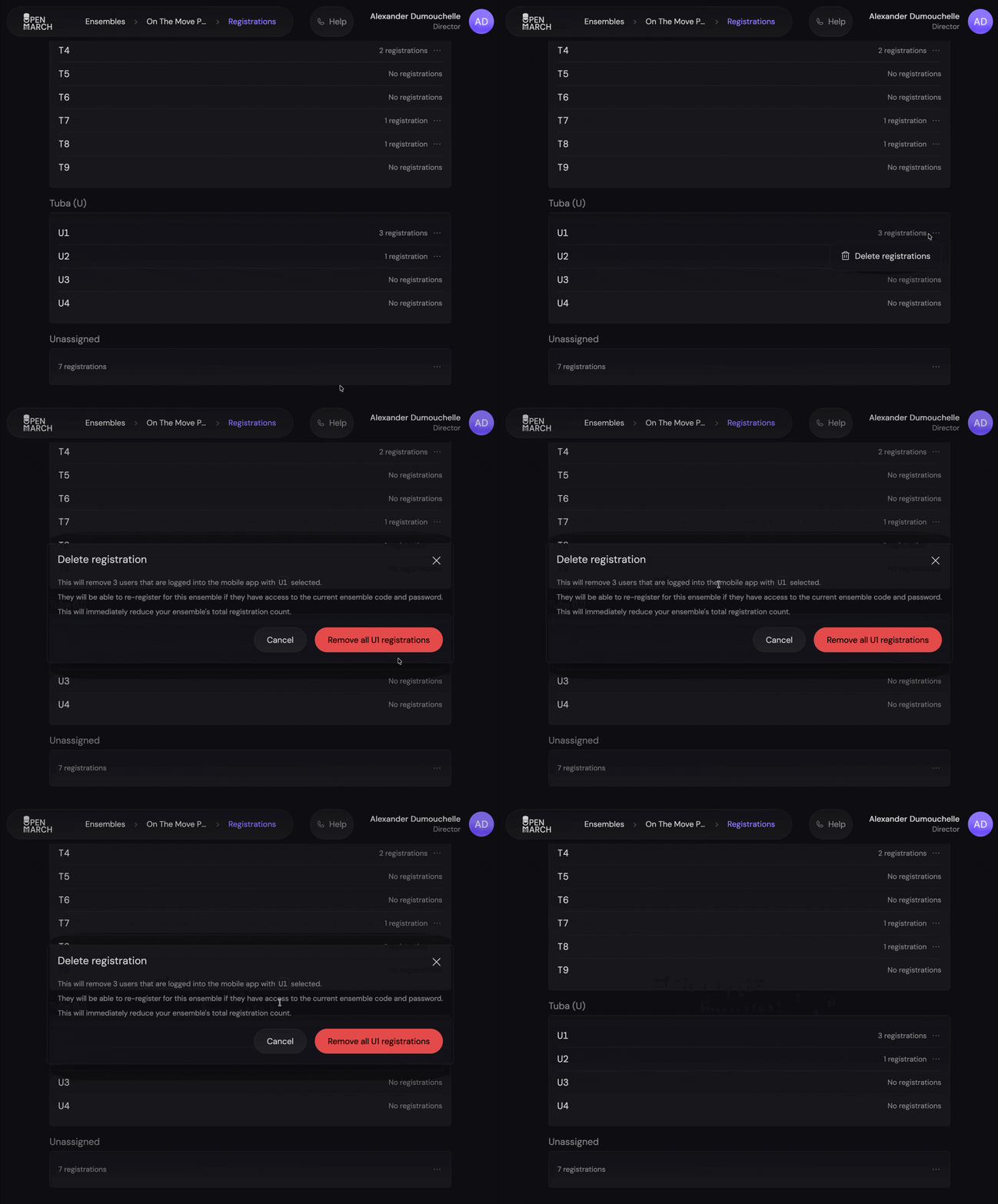
Section titled “Can I remove a device from my ensemble?”Yes. You can remove devices from your ensemble by performer label in the performer registration page. This logs the user out of the ensemble on their device and adds the seats back to your account.
E.g. if you wanted to remove users who selected U1, you would:
- Find
U1in the performer registration page. - Click on the three dots next to
U1. - Click “Delete registrations”.
- Confirm the deletion.
What are seats?
Section titled “What are seats?”Seats are the number of devices that can be registered to an ensemble at a given time.
How are seats purchased?
Section titled “How are seats purchased?”Seats are purchased by the account administrator. App users do not need to purchase seats.
Seats may be purchased either by credit card or PO/invoice in the Ensemble Management Dashboard. Reach out to us at sales@openmarch.com for any questions.
How do you handle payments?
Section titled “How do you handle payments?”We use Paddle, a third-party payment processor. With Paddle, we can support credit card purchases and invoices. We use them to securely process payments and comply with local tax laws and regulations.
To view your past invoices, you can use the Paddle customer portal for OpenMarch LLC. Be sure to log in with the same email address you used to purchase the seats. This does not have to be the same email address as your OpenMarch account.
How are seats counted?
Section titled “How are seats counted?”Each unique device that registers to an ensemble is counted as a seat.
If you have a case where you need multiple devices to use one seat, reach out to us at otm-help@openmarch.com.
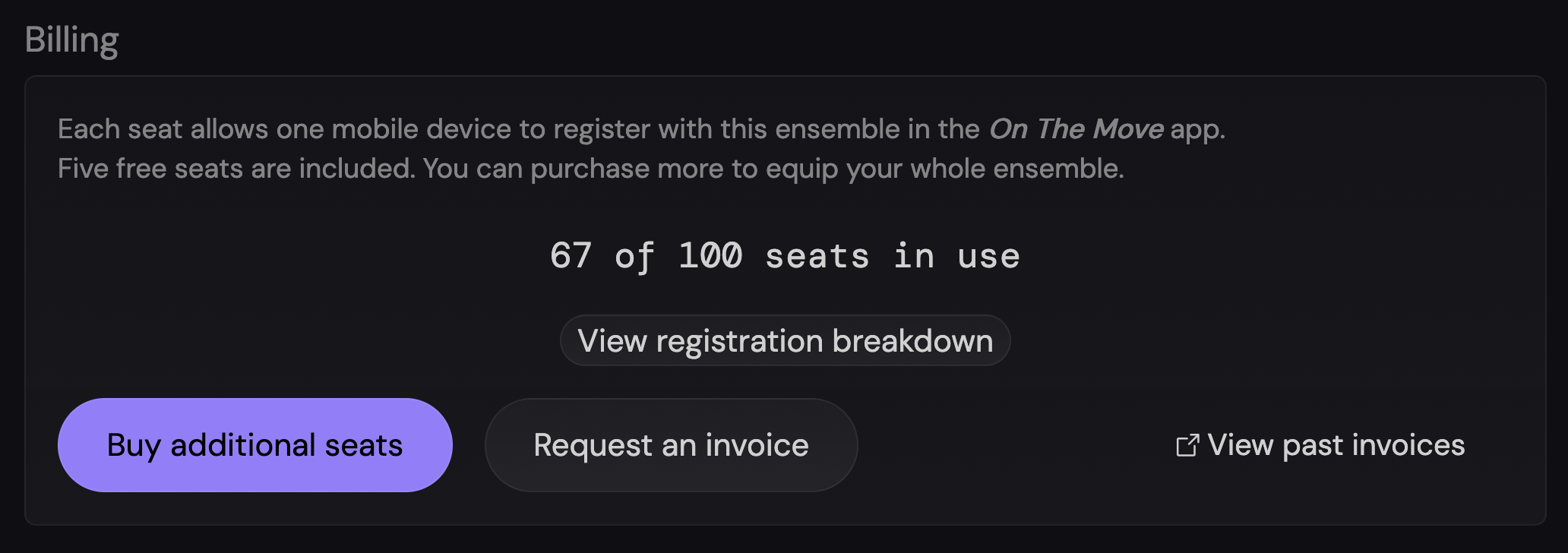
You can see how many seats are left in your ensemble by scrolling to the “Billing” section in the Ensemble Management Dashboard.