Uploading Shows to OTM
All shows are uploaded to OTM from the desktop app and require an OpenMarch account to create and publish.
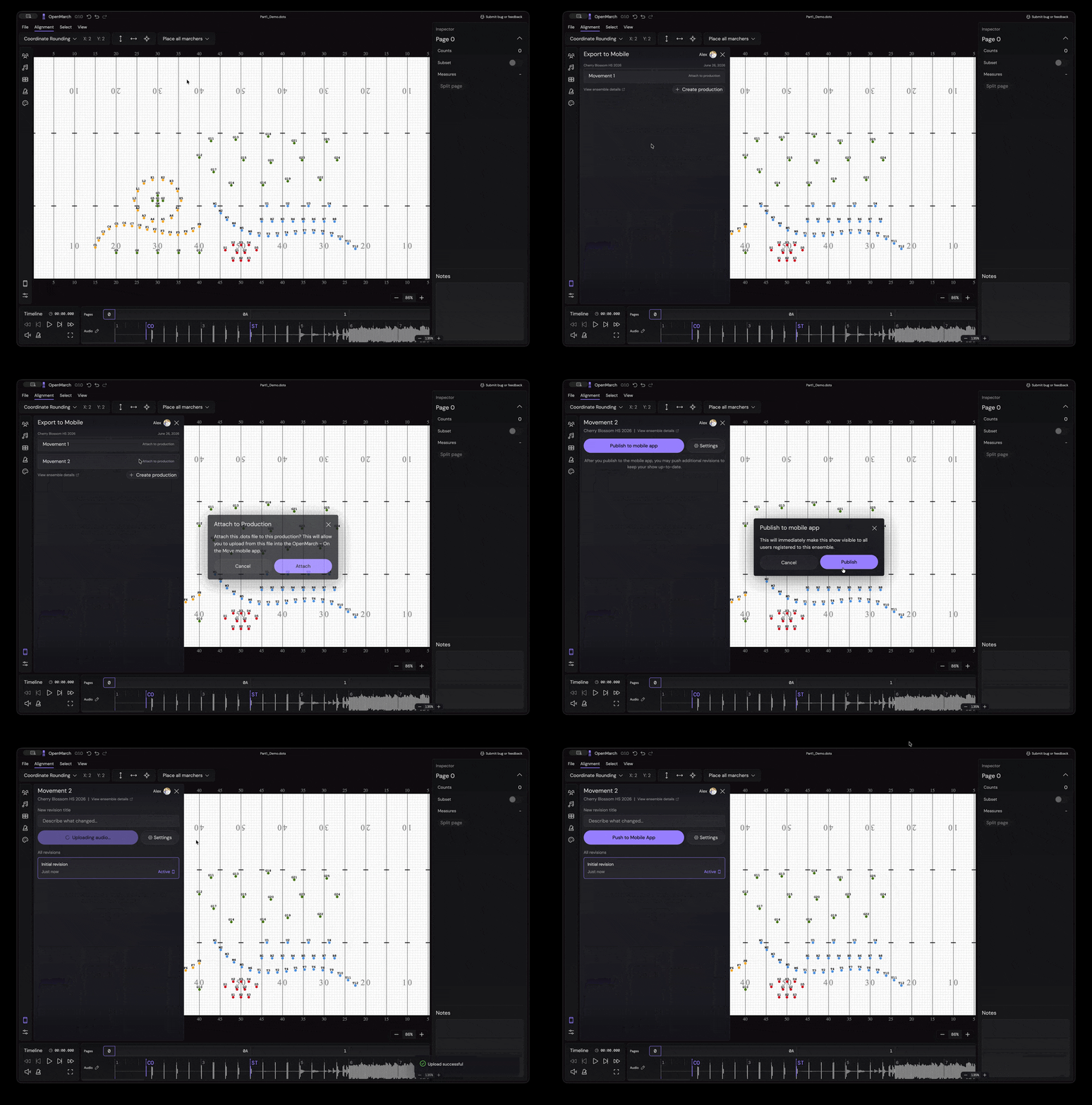
Uploading to OTM for the first time
Section titled “Uploading to OTM for the first time”-
Create an Ensemble and Production in the Ensemble Management Dashboard.
See Getting Started for more information on what an Ensemble and Production are.
-
Open the OpenMarch Desktop app with the show you want to upload.
-
Click the Phone icon in the bottom left corner.
-
Press
Sign into connect your account to the desktop app. -
Click the Production you want to upload to and click
Attach File to Production. -
Then, click “Publish to mobile app”.
-
The show will be instantly available to all performers registered to the ensemble.
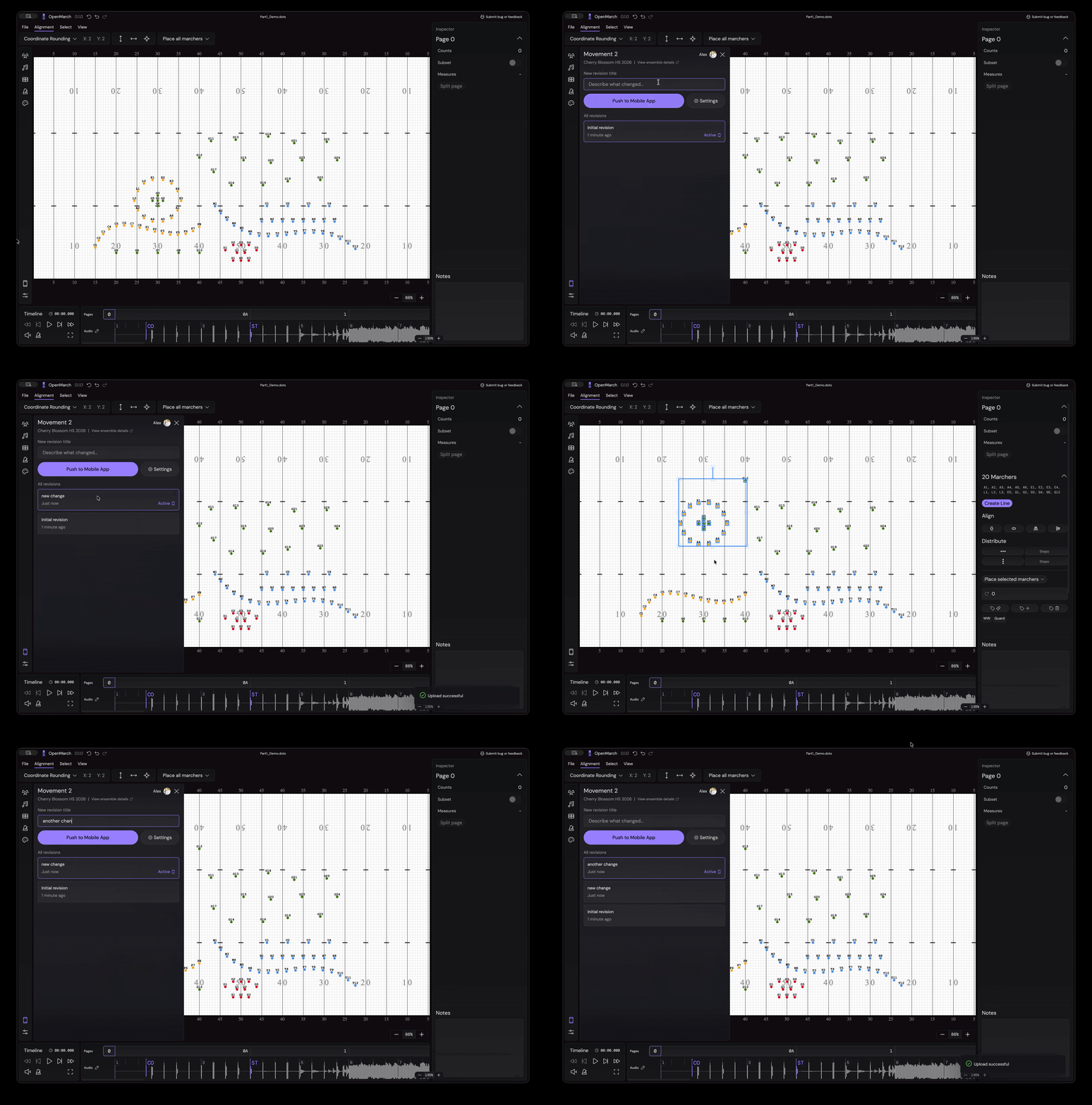
Uploading revisions to an existing production
Section titled “Uploading revisions to an existing production”OpenMarch allows you to upload Revisions to an existing production. This is useful for making changes to you show after you publish it initially.
-
Open the OpenMarch Desktop app with the show you want to upload.
-
Click the Phone icon in the bottom left corner.
You should see your Production you attached the file to previously.
-
Type a small message describing what changed in the production.
This is not visible to users on the mobile app. It’s just for your reference.
-
Press
Publish to mobile app. -
The updates will be instantly available to all performers registered to the ensemble.